01
Reuse what already works.
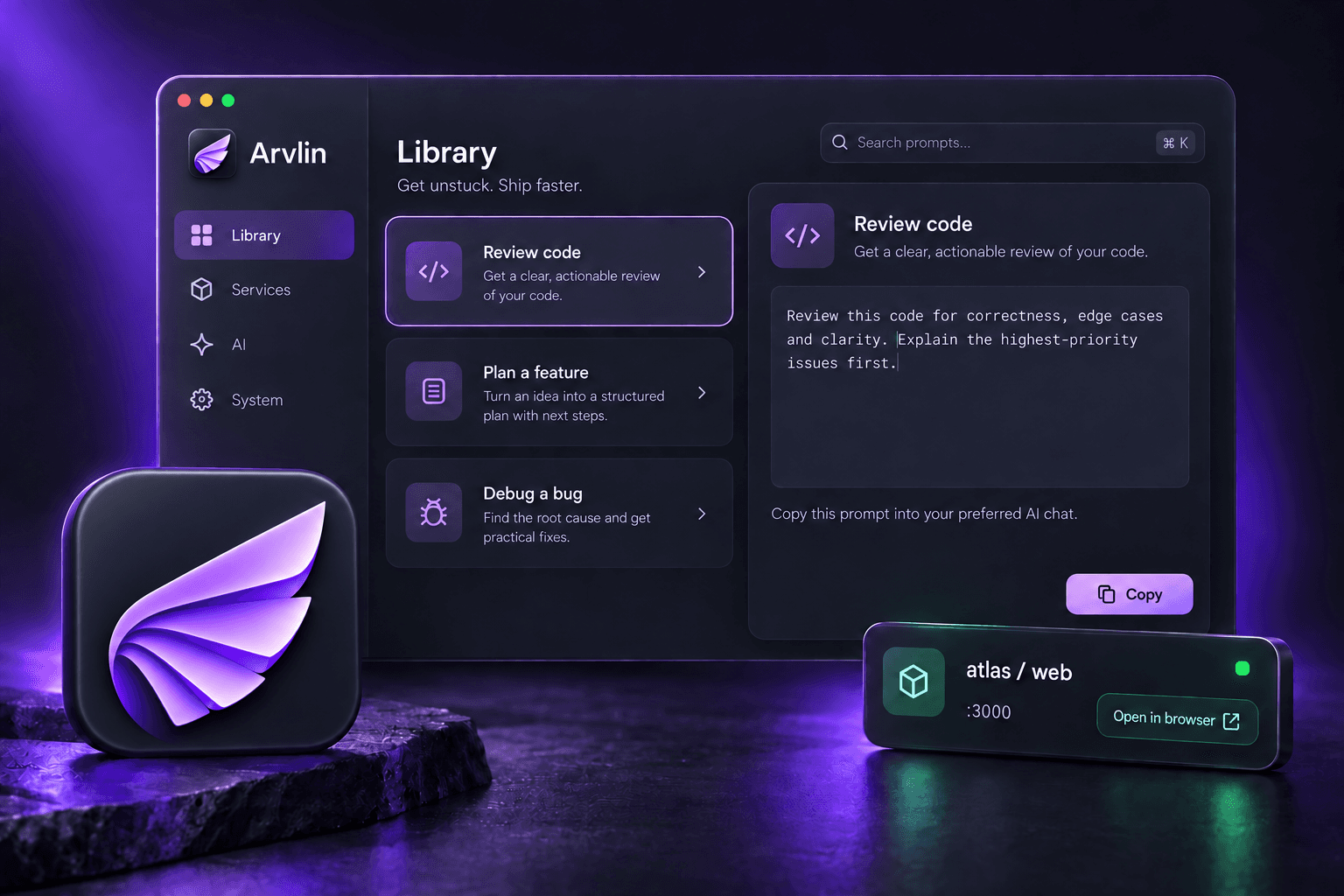
Organize prompts and skills, mark favorites and return to recent items. Copy content or drag it into your chat.
Prompts · Skills · Favorites ArvlinYour everyday Mac workspaceCOMING SOON
Your prompts and skills, local services and Mac maintenance tools in one place. Arvlin brings recurring tasks into a workspace you can reach from your desktop and menu bar.
Explore the workflowsmacOS 14 or later · Apple SiliconDownloads opening soon
YOUR DAILY WORKFLOW
Drag a prompt into a chat. Find the port for your running project. Review what takes up space on your Mac. Open the tool you need and get back to work.
Organize prompts and skills, mark favorites and return to recent items. Copy content or drag it into your chat.
Prompts · Skills · FavoritesSee running services with their project context. Copy a port, open suitable services in your browser and follow CPU and memory usage.
Project path · Port · Resource usageInspect cleanup candidates and disk usage. Manage application removal and updates from supported sources in the same workspace.
Cleanup · Applications · Disk analysisReview local usage records from supported CLI tools in one place. Keep usage context as you move between tools.
Local records · Usage overviewInspect system status and resource usage for running processes. Understand your Mac’s current state before deciding on maintenance.
System status · Running processesOpen quick access from the menu bar or desktop companion. Focus on one module or combine your choices in the Summary view.
Menu bar · Mini window · Summary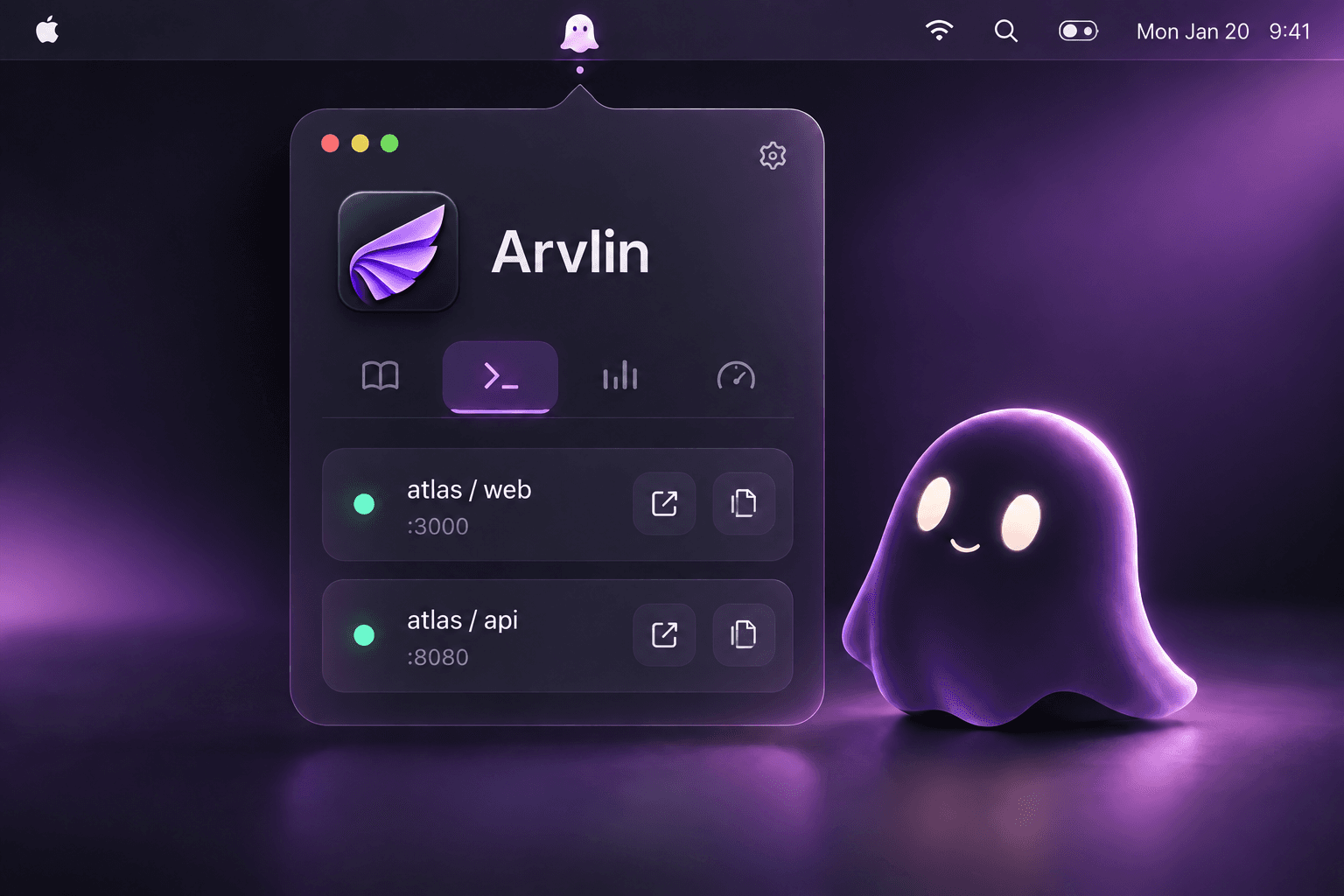
A DESKTOP COMPANION
Reach your library, services, AI center and system status without returning to the main window. Personalize your desktop companion around the way you work.
ORIGAMI RAVEN
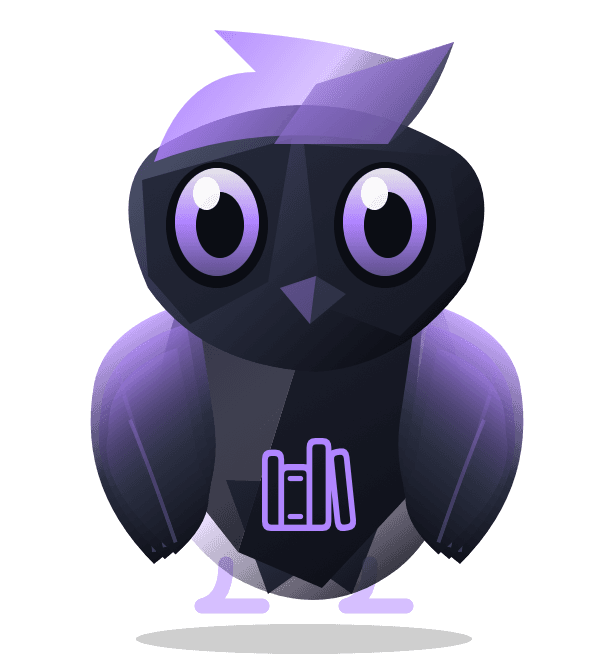
The raven takes on the color and symbol of your chosen workspace. See your current task at a glance as you move between the library, services, AI usage, system and Summary.
Return to your prompts and skills.
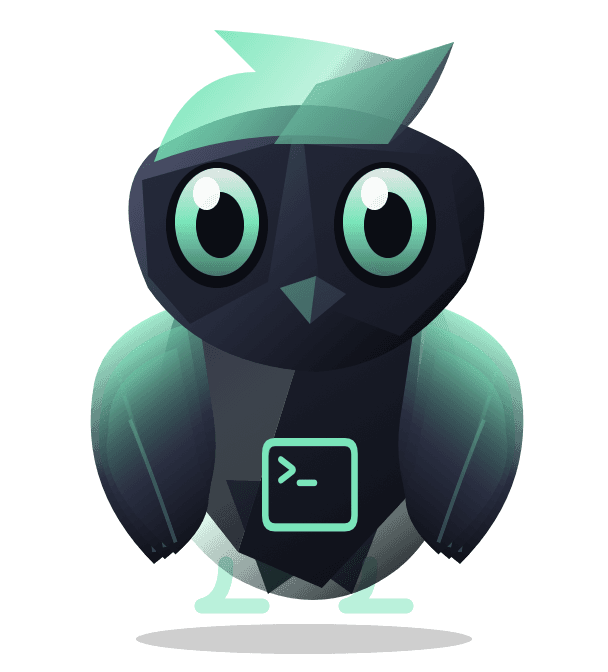
Reach your running projects.

Review AI usage.

See how your Mac is doing.
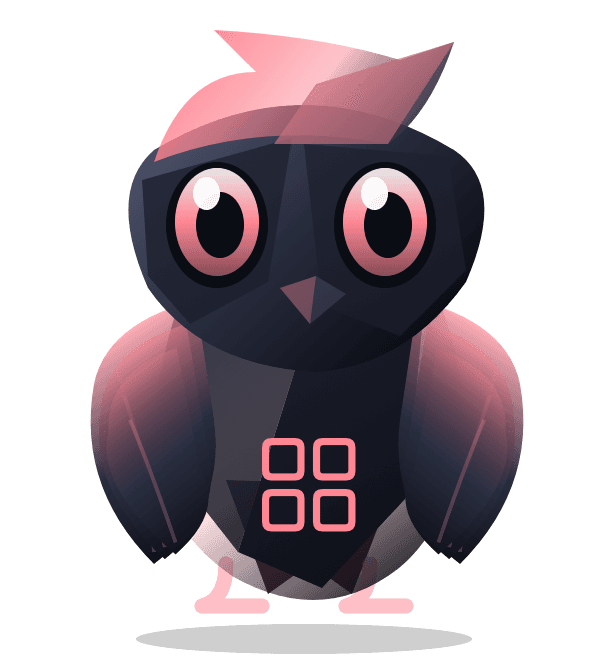
Combine your chosen modules.
Actual mode appearances rendered by Arvlin’s native drawing code.
When the cursor is over the companion, it responds, follows movement within that area with its gaze and blinks.
Drag it to trigger its flight motion; release it to land in a new spot.
Click your companion to open quick access for the selected workspace.
With Reduce Motion enabled, animations stop while task identity and quick access remain available.
COMING SOON
We’re preparing Arvlin for release. Downloads will open once the final development and checks are complete.
Get in touch about Arvlin